
Conference Summary
Turn the conversation into a clear next step.
Upload a meeting, interview, or conference recording. Get a transcript with speaker labels, a translation, and a structured summary with links back to the moments that matter.
- Speaker-labeled transcripts
- Linked source moments
- Flexible exports
LESS REPLAYING. MORE FOLLOWING THROUGH.
A conversation worth keeping
Video / Audio · MP3 / MP4 / WAV
2
Hours per recording
18
Language options
5
Export formats
What you can do
Every useful detail. Still in context.
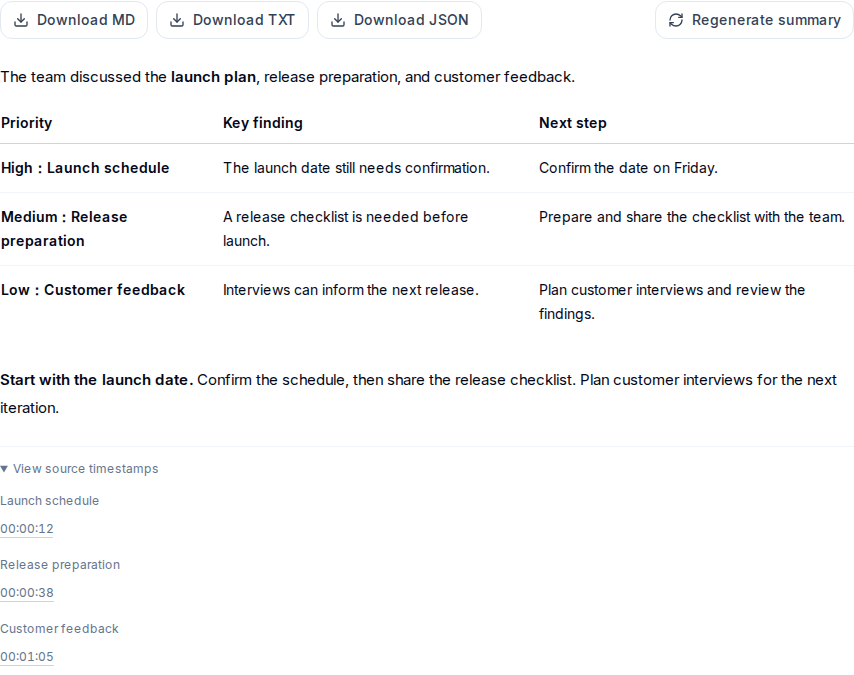
A summary gets you oriented. Speaker labels, bilingual text, and source timestamps help you check what was actually said.
Know who said what
Review a timestamped transcript, rename speaker labels, search the conversation, and filter by speaker.
Find decisions and follow-ups
Read a concise overview, a briefing ordered by priority, and suggested next steps. Open source timestamps to check a point against the transcript and recording.
Bring everyone into the conversation
Compare original and translated text side by side, or retranslate a saved transcript into another target language.
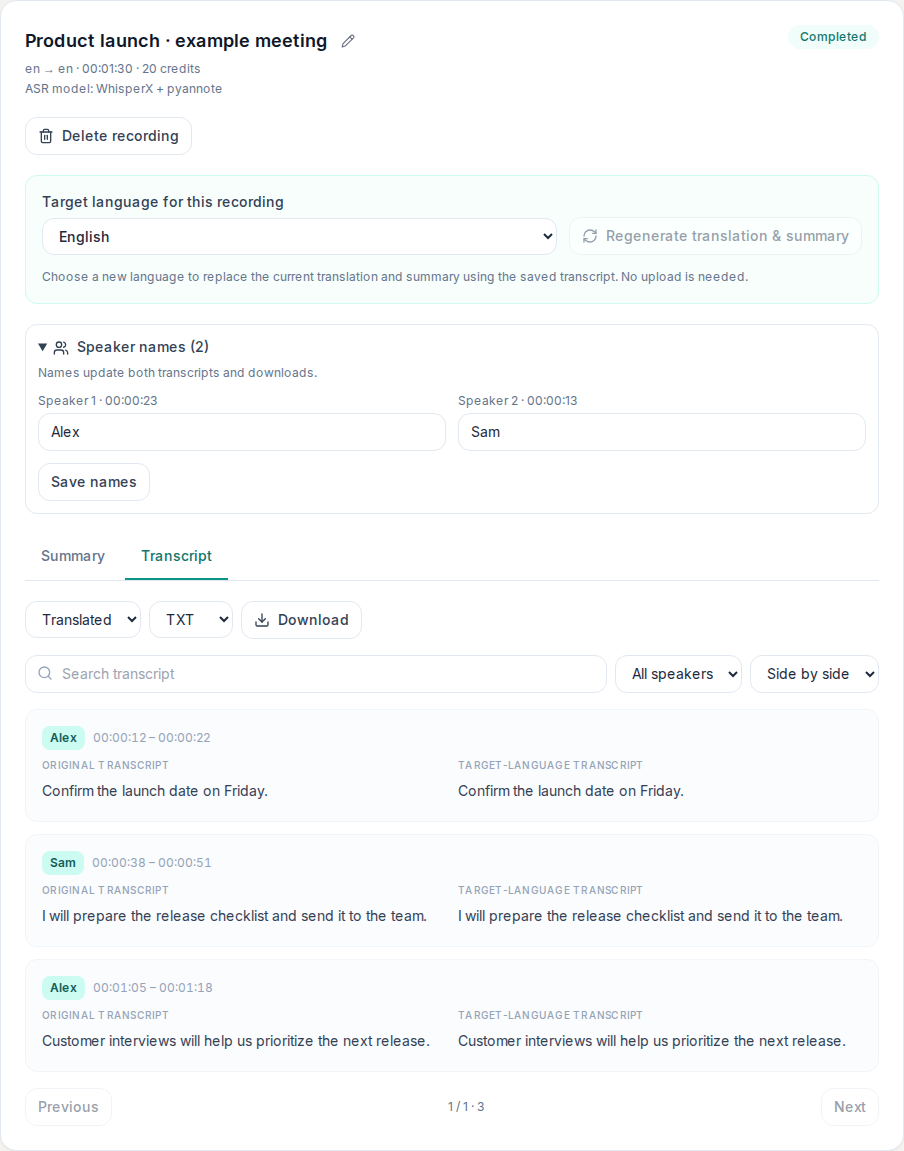
Inside the workspace
Bring everyone into the conversation
Compare original and translated text side by side, or retranslate a saved transcript into another target language.
Review speaker names and compare the original transcript with its translation.
Quick start
From upload to useful output
- 01
Upload your recording
Open Conference Summary and choose an audio or video file. Set the source language or leave auto-detection on, then choose the target language for the translation and summary.
- 02
Transcribe, translate, summarize
Choose WhisperX + pyannote or ElevenLabs Scribe. Noise reduction is on by default. For WhisperX, optionally set speaker counts; 0 means automatic. Check limits and credits, then start and follow the processing stages.
- 03
Check the evidence and export
Review the summary and follow its timestamp links to the transcript and recording. Rename speakers, save their names, then download the summary or the original or translated transcript.
Made for your next project
Project teams
Revisit decisions and prepare follow-ups from recorded team discussions.
Interviews & research
Find a speaker’s comments and trace a summary point back to its source.
Multilingual organizations
Give colleagues a translated transcript alongside the original conversation.
Questions, answered
Does it join or record a live meeting?
This workflow starts with an uploaded audio or video recording. Record your meeting with your usual tool, then upload the file for transcription, translation, and summary.
Can I verify a summary against the recording?
Yes. Summary items include source timestamps. Select one to open the corresponding transcript segment and play that point in the recording.
What can I download?
Download the summary as Markdown (.md), TXT, or JSON. In Transcript, choose Original or Translated, then TXT, SRT, VTT, or JSON and Download. Save speaker names first. Transcript downloads include the entire selected transcript, regardless of search filters or pagination.
Ready for the next step