
Conference Summary: from recording to meeting notes
Upload a meeting, interview, or conference recording. Get a transcript with speaker labels, a translation, and a structured summary with links back to the moments that matter.
Quick start
- 1
Upload your recording
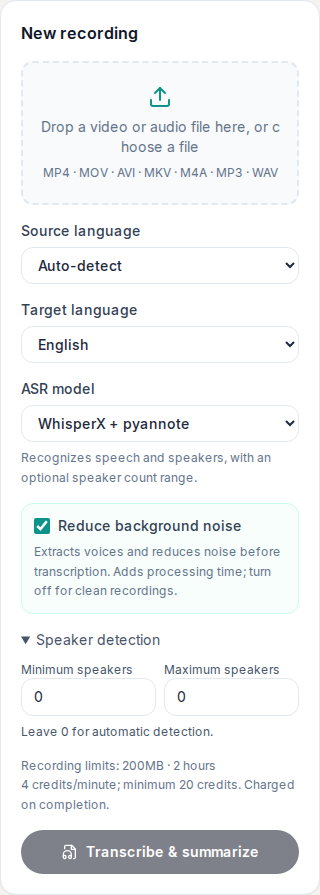
Open Conference Summary and choose an audio or video file. Set the source language or leave auto-detection on, then choose the target language for the translation and summary.
- 2
Transcribe, translate, summarize
Choose WhisperX + pyannote or ElevenLabs Scribe. Noise reduction is on by default. For WhisperX, optionally set speaker counts; 0 means automatic. Check limits and credits, then start and follow the processing stages.
- 3
Check the evidence and export
Review the summary and follow its timestamp links to the transcript and recording. Rename speakers, save their names, then download the summary or the original or translated transcript.
Files, languages, and credits
Upload MP4, MOV, AVI, or MKV video, or MP3, M4A, or WAV audio. Check the upload size, duration limit, and credit information shown in your workspace before starting. Limits and available services depend on your account and configuration. Recordings can be up to 2 hours. The upload-size limit and minimum credit charge are shown in your workspace. Processing costs 4 credits per started minute, subject to that minimum, and is charged on completion. The source can be auto-detected; the target applies to both translation and summary.
The language selectors offer 18 options: Simplified Chinese, Traditional Chinese, English, Spanish, French, German, Japanese, Korean, Portuguese, Russian, Arabic, Italian, Thai, Vietnamese, Indonesian, Turkish, Polish, and Dutch. Voice and recognition support can vary by provider.
Set up your recording
WhisperX + pyannote is the default model. Its Speaker detection panel accepts a minimum and maximum from 0 to 30; 0 means automatic. A nonzero maximum must be at least the minimum. ElevenLabs Scribe detects speakers automatically and requires an ElevenLabs API key configured by an administrator; speaker-count controls are hidden for this model.
Reduce background noise is enabled by default. It extracts voices and reduces noise before transcription, adding processing time. Turn it off for a clean recording. Processing runs through audio preparation, speech recognition, translation, and summarization; progress and any warnings appear on the selected recording.
Speakers and transcript review
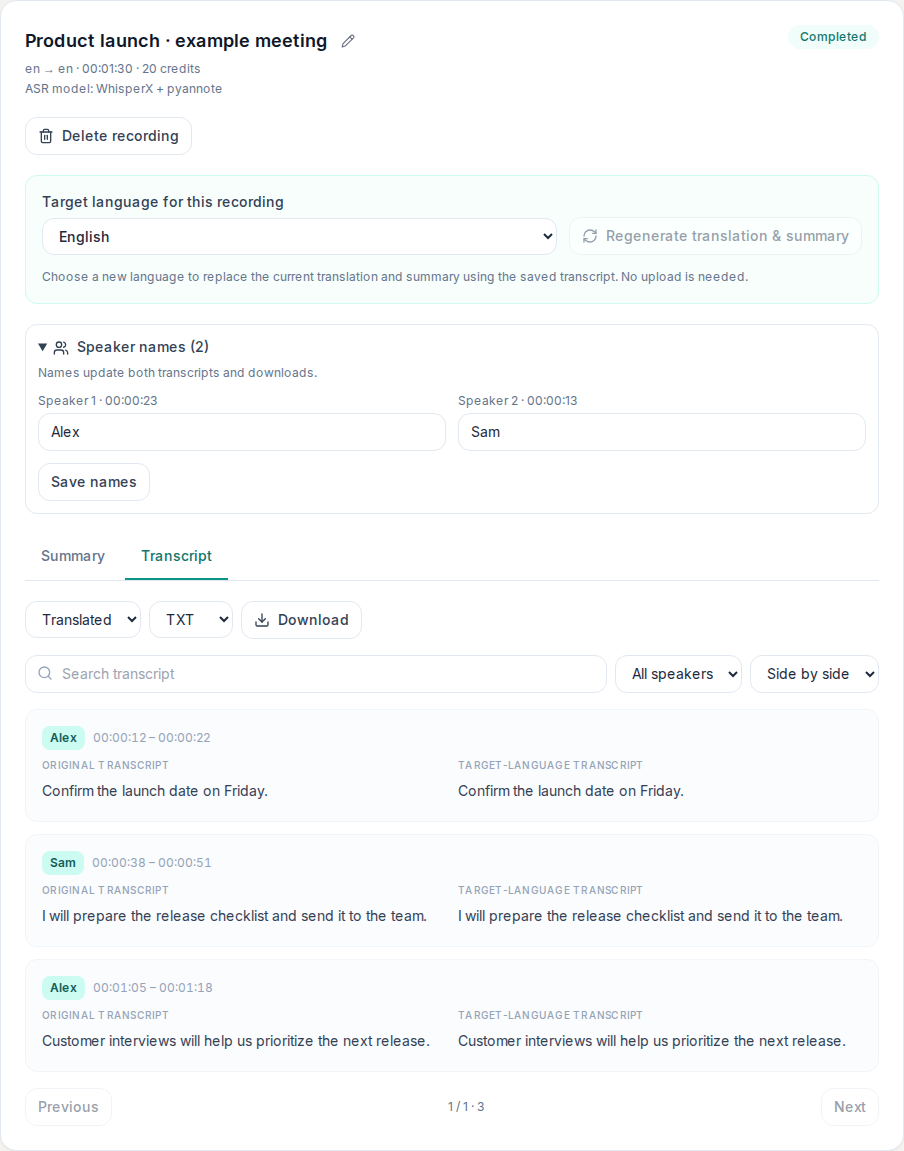
Expand Speaker names, replace labels with names, then select Save names. Names are used in the transcript and downloads. Renaming a label does not reassign individual segments; listen to the recording to check similar voices or overlapping speech.
In Transcript, choose original, translated, or side-by-side view. Search across both texts or filter by speaker. Click a timestamp to play that moment. Download uses the selected full original or translated transcript, not just the current search results or page.
Read and verify the summary
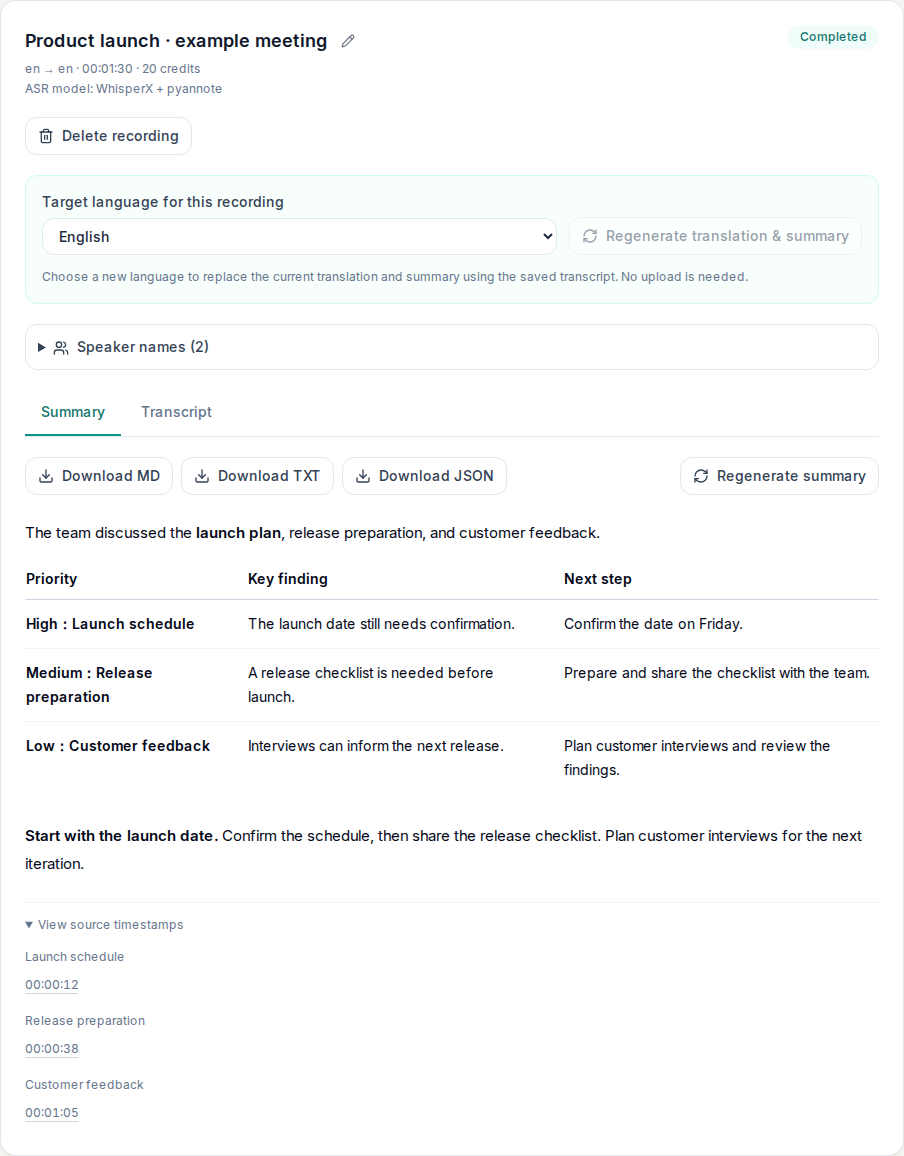
The current summary can show an overview, a three-column briefing sorted High → Medium → Low, and a follow-up paragraph. Column headings adapt to the recording. Older results without a briefing show topics, decisions, action items, and open questions instead.
Expand View source timestamps below the summary. Select a time to switch to the transcript, highlight the matching segment, and seek the recording when playback is available. Verify names, dates, and commitments before sharing the notes.
Download formats
Download the summary as Markdown (.md), TXT, or JSON. In Transcript, choose Original or Translated, then TXT, SRT, VTT, or JSON and Download. Save speaker names first. Transcript downloads include the entire selected transcript, regardless of search filters or pagination.
Briefing exports in Markdown and TXT contain the readable overview, table or rows, and follow-up text. Source segment IDs are preserved in summary JSON; use the workspace source links to review timestamps. SRT and VTT are subtitle files, not a dubbed audio or video export.
Change language or regenerate notes
Once processing has stopped and the original transcript exists, choose a different Target language for this recording, then Regenerate translation & summary. This reuses the saved original transcript without uploading or recognizing the audio again and replaces the current translation and summary. Download the current version first if you need to keep it.
To update only the notes, open Summary and choose Regenerate summary. This keeps the transcript and translation and replaces the summary. These actions are unavailable while the recording is processing or before a transcript is ready.
Troubleshooting
- Upload rejected: use a supported audio/video format and check the displayed file size and duration limits.
- Speaker labels look wrong: listen to the source, rename labels where appropriate, and use a known speaker range for your next upload. Overlapping speech can reduce accuracy.
- Summary or translation is missing: read the job’s warning or error. A transcript can remain available even if a later stage fails. Retry failed or cancelled jobs, or regenerate the translation and summary when an original transcript is available.
- Need to stop or remove a job: Cancel stops an active job; Retry is available for failed or cancelled jobs. Delete asks for confirmation and removes the recording job, so download any results you need first.